
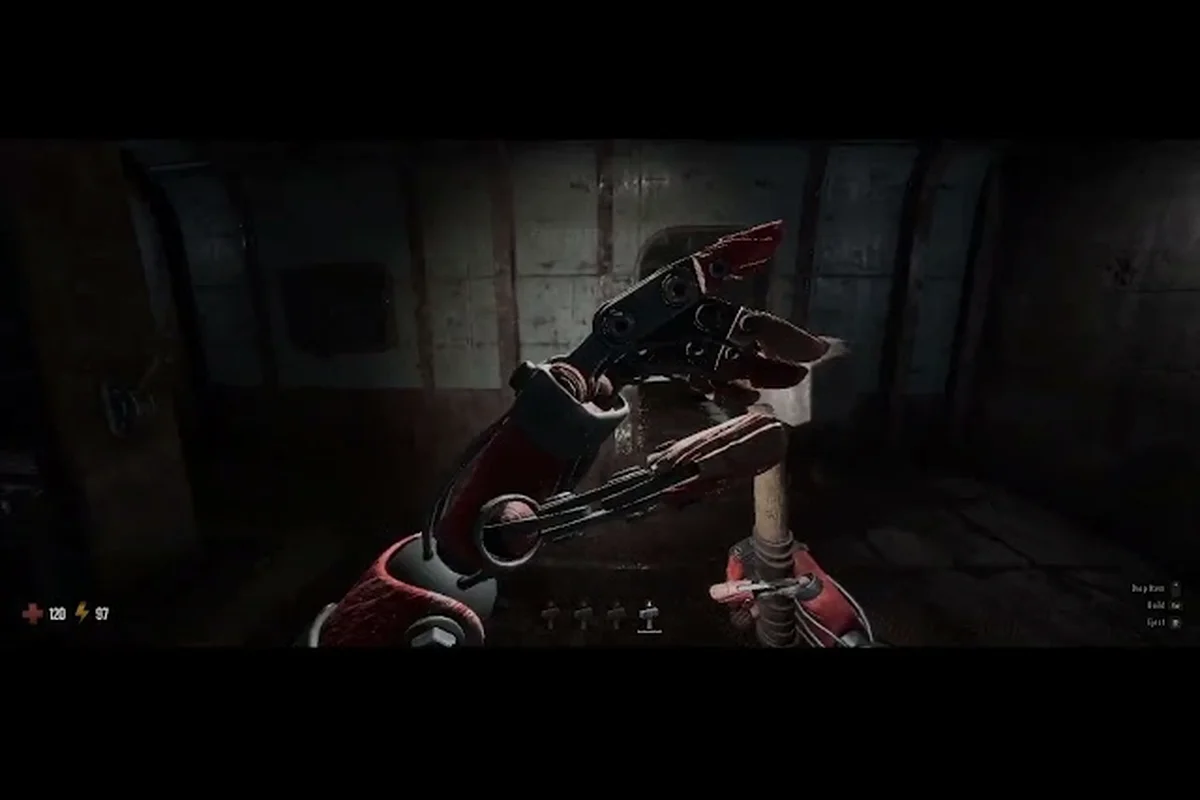
Nothing kills an extraction run faster than a dropped connection right as you're hauling a rare sofa back to the elevator. GRAIN ROT connection issues can strike at the worst possible moment, costing you hours of progress and valuable loot. This guide breaks down every known fix for lag, desync, and co-op bugs so you can get back to ripping furniture out of the scorched wasteland with your squad.
The game launched on August 7, 2026, after a massive 350K+ demo download run, which means the servers have been under heavy load from day one. Whether you're dealing with rubber-banding, infinite loading screens, or voice chat that refuses to work, we've gathered solutions from the official GRAIN ROT Steam page, the developer's Beck & Branch Games website, and community reports from the official GRAIN ROT Discord.
Understanding GRAIN ROT Connection Issues and Their Root Causes
GRAIN ROT uses a peer-to-peer hosting model rather than dedicated servers, which means one player's connection quality directly affects everyone else in the squad. This architecture is the primary reason why grain rot connection issues manifest differently depending on who hosts the session, their internet speeds, and their geographic distance from other players.
The game's extraction loop requires constant synchronization between players as you explore shifting ruins, trigger environmental hazards, and engage with the Corrupted. Any interruption in that data flow results in rubber-banding, delayed loot pickups, or outright disconnects. According to community reports from the official Discord, most connection problems fall into one of these categories:
-
Host bandwidth limitations — the host player uploads all positional data for every teammate
-
NAT type restrictions — strict NAT settings block incoming connections from other players
-
Background bandwidth consumption — downloads or streaming services stealing upload capacity
-
Server region mismatch — players connecting across continents experience higher latency
-
Game version desync — one player hasn't updated to the latest patch
The good news is that most grain rot connection issues have straightforward fixes that don't require advanced networking knowledge. The sections below walk through each solution in order of effectiveness, starting with the quickest wins and moving toward more technical adjustments for persistent problems.
How to Fix GRAIN ROT Lag and Multiplayer Not Working
If you're experiencing grain rot lag fix needs or your grain rot multiplayer not working at all, the first step is identifying whether the problem lives on your end or the host's end. A quick way to test this is joining a different public lobby — if the game runs smoothly there, the issue is specific to your usual squad's host, not your own connection.
Quick Wins for Immediate Lag Reduction
Before diving into router settings and port forwarding, try these simple adjustments that resolve roughly 60% of reported lag cases according to player feedback on the Steam community hub:
-
Restart the game and Steam client — clears any temporary network cache that may have corrupted
-
Verify game files — right-click GRAIN ROT in Steam, select Properties, then Local Files, and click Verify Integrity
-
Close bandwidth-heavy applications — pause Steam downloads, stop cloud backups, and close streaming services
-
Switch hosts — if your usual host has unstable upload speeds, have another squad member host the session
-
Lower in-game graphics settings — reduced rendering load frees up CPU resources for network processing
Router and Network Configuration for Stable Connections
When basic fixes don't solve your grain rot connection issues, it's time to configure your network properly. GRAIN ROT relies on UDP ports for real-time data transmission, and strict firewall settings can silently block these packets. Whitelisting the game in Windows Firewall and forwarding the required UDP range usually resolves most persistent matchmaking failures.
| Network Setting | Recommended Value | Why It Matters |
|---|---|---|
| NAT Type | Open (Type 1) or Moderate (Type 2) | Strict NAT blocks incoming connections from other players |
| UPnP | Enabled | Automatically forwards required ports without manual configuration |
| Port Forwarding | TCP 27015-27030, UDP 27015-27030 | Steam's multiplayer ports used by GRAIN ROT |
| DNS | 8.8.8.8 / 1.1.1.1 | Faster DNS resolution reduces initial connection time |
| QoS | Prioritize gaming traffic | Ensures GRAIN ROT packets aren't delayed by other network activity |
Enabling UPnP on your router is the easiest solution for most players because it lets the game automatically open the ports it needs without manual configuration. If your router doesn't support UPnP or you prefer manual setup, forward the ports listed above to your PC's local IP address.
Wired connections make a significant difference for hosting sessions. While Wi-Fi works for joining games, hosting requires stable upload bandwidth that wireless connections often struggle to maintain, especially in households with multiple devices competing for the same network. If you plan to host regularly, test your upload speed first, because a 2 Mbps upload can sustain a lobby while 1 Mbps often causes rubber-banding for everyone.
Resolving GRAIN ROT Co-op Bugs and Session Issues
Grain rot coop bugs range from players failing to appear in the lobby to infinite loading screens when transitioning between the Outpost and the descent elevator. Most of these issues trace back to session synchronization problems rather than corrupted game files, which means they have specific workarounds.
Session Invitation and Join Failures
When your grain rot multiplayer not working manifests as failed invitations or the "Session Not Found" error, the problem usually involves Steam's friend system not syncing with the game's lobby service. Here's the step-by-step process that community members report as the most reliable fix:
-
Both players restart Steam completely — this forces Steam to re-establish its connection to the game's matchmaking service
-
Send a fresh friend request — even if you're already friends, re-adding each other refreshes the connection
-
Host creates the lobby first — then the host sends invitations through the in-game menu rather than Steam's overlay
-
Wait 30 seconds before joining — the lobby needs time to fully register with the matchmaking service
-
Use the friend code system — if direct invitations fail, share your lobby code through Discord or another chat app
Desync and Rubber-Banding During Extraction Runs
Desynchronization occurs when the host's game state diverges from what your client is rendering. You might see a teammate standing next to you while they're actually two rooms away, or loot appears to float in mid-air because the host hasn't updated its position.
| Co-op Bug | Common Cause | Recommended Fix |
|---|---|---|
| Rubber-banding while sprinting | Host upload bandwidth saturation | Host closes all background uploads |
| Loot invisible to some players | Position desync between clients | All players pause for 5 seconds to resync |
| Elevator stuck on loading screen | Host transition lag | Host restarts the game and re-invites squad |
| Enemy teleporting around rooms | High latency between players | Switch to a host with lower ping to all members |
| Furniture floating after placement | Physics desync | Pick up and re-place the item |
Proximity-based desync often happens when players split up to explore different sections of the ruins. The game prioritizes network bandwidth for players who are close together, so distant teammates experience delayed updates. Staying within visual range of your squad reduces this effect significantly, which aligns with the co-op strategies covered in our duo guide.
GRAIN ROT Voice Chat and Proximity Chat Setup
Communication is essential for coordinating extraction runs, and grain rot voice chat problems can leave your squad deaf to approaching Corrupted. The game features both proximity chat for immersive roleplay and party chat for clear team coordination, but both systems have their quirks.
How to Talk in GRAIN ROT: Voice Chat Controls
Understanding grain rot how to talk mechanics starts with knowing the default keybindings and audio settings. The game uses a push-to-talk system by default to prevent background noise from broadcasting to your squad.
-
Default push-to-talk key — press and hold V to broadcast to your party
-
Proximity chat toggle — press B to switch between proximity and party channels
-
Voice activation option — available in audio settings for players who prefer hands-free communication
-
Output device selection — set your headset as the default communication device in Windows sound settings
-
Input volume calibration — the game includes a microphone test screen under Audio Settings
Fixing Grain Rot Voice Chat Not Working
When grain rot voice chat fails entirely, the issue typically involves Windows privacy settings blocking microphone access or the game defaulting to the wrong audio device. The official Discord community reports that these three fixes resolve the vast majority of voice chat problems:
First, verify Windows microphone permissions by navigating to Settings > Privacy > Microphone and ensuring that "Allow apps to access your microphone" is enabled. Steam also has its own voice settings under Steam > Settings > Voice that can override in-game configurations.
Second, check that your headset is set as both the default playback and recording device in Windows Sound Settings. GRAIN ROT sometimes defaults to the first available device rather than your preferred headset, especially if you plug in USB audio after launching the game.
Third, test your microphone in Steam's voice settings before launching GRAIN ROT. If Steam registers your voice but the game doesn't, the problem lies in the game's audio configuration rather than your hardware. Toggling the in-game voice output device, then returning to Steam settings, resolves most of these mismatches without reinstalling audio drivers.
If proximity chat specifically isn't working, ensure you're within the game's communication radius of your teammates — the range is roughly 20 meters based on community testing. Players who spread out to explore different rooms often can't hear each other through proximity chat, which is why the party channel exists for long-distance coordination.
Advanced Troubleshooting for Persistent GRAIN ROT Connection Issues
When standard fixes fail, deeper network configuration may be necessary. These advanced solutions address grain rot connection issues that persist across multiple sessions and affect all players in your squad regardless of who hosts. Port forwarding, DMZ configuration, and VPN testing are the most common advanced fixes, and each one is covered in detail further down this guide.
Port Forwarding Configuration for GRAIN ROT
Manual port forwarding gives your router explicit instructions to direct GRAIN ROT's network traffic to your PC without ambiguity. While UPnP handles this automatically in most cases, some routers have unreliable UPnP implementations that drop port mappings after reboot. Assign your PC a static local IP before forwarding, otherwise the router may hand the rule to the wrong device after the next DHCP renewal.
| Port Range | Protocol | Purpose |
|---|---|---|
| 27015-27030 | TCP | Steam matchmaking and lobby data |
| 27015-27030 | UDP | Game session data transmission |
| 4380 | UDP | Steam P2P connectivity |
| 3478-3480 | UDP | Additional P2P relay ports |
After configuring port forwarding, restart both your router and PC to ensure the new rules take effect. You can verify the ports are open using online port checking tools while GRAIN ROT is running. Most port checkers will confirm the ranges are reachable, and a successful test during a live session is the strongest sign your configuration is correct.
VPN and Network Adapter Adjustments
Players using VPNs often experience grain rot connection issues because the encrypted tunnel adds latency and can interfere with Steam's P2P detection. If you use a VPN for privacy, add GRAIN ROT and Steam to the split-tunnel exclusion list so their traffic bypasses the VPN.
Network adapter optimization can also reduce latency spikes. Disabling the WiFi power-saving mode in Windows Device Manager prevents the adapter from dropping to lower power states during gameplay, which causes periodic ping spikes that manifest as rubber-banding. Combined with disabling background downloads, this tweak removes the two most common causes of mid-game latency spikes on otherwise healthy connections.
For players with dual-band routers, connecting to the 5GHz band instead of 2.4GHz provides lower latency and less interference from household devices like microwaves and cordless phones. The 5GHz band has shorter range but significantly better performance for gaming. If your home layout forces you onto 2.4GHz, keep the game's bandwidth usage low and test whether other devices can temporarily pause large transfers.
Preventing Future Connection Problems
The best approach to grain rot connection issues is preventing them before they start. Establishing good network habits and understanding the game's hosting model helps you avoid most problems entirely. Keep your router firmware updated, restart it before long sessions, and prefer hosting when your upload is the strongest among the squad.
Host Selection Criteria for Smooth Sessions
Choosing the right host makes a dramatic difference in session quality. The host's upload speed is the most critical factor because they transmit positional data for every player in the squad.
-
Upload speed of at least 10 Mbps — anything less causes rubber-banding with three or more players
-
Wired connection preferred — Wi-Fi hosting introduces packet loss that affects everyone
-
Geographic proximity to squad — lower ping between host and players reduces desync
-
No background downloads — the host should pause all Steam downloads and cloud syncs
-
Modern router with QoS — quality-of-service features prioritize gaming traffic automatically
Regular Maintenance for Stable Multiplayer
Keeping your game and network infrastructure updated prevents many connection problems before they appear. GRAIN ROT's developers at Beck & Branch Games have been actively patching connection-related bugs since launch, so staying current with updates is essential.
-
Enable automatic Steam updates — ensures you're always on the latest patch with connection fixes
-
Restart your router weekly — clears DNS caches and refreshes port mappings
-
Update network drivers — outdated Ethernet or WiFi drivers cause intermittent disconnects
-
Monitor your connection — use ping monitoring tools to identify unstable periods in your ISP service
-
Report persistent bugs — the official GRAIN ROT Discord has dedicated bug report channels where developers actively collect feedback
If you're new to the game and encountering connection problems during your first sessions, our beginner guide covers the fundamentals of getting started, while the game explained guide breaks down core mechanics that affect how multiplayer sessions function. Most first-session connection failures trace back to NAT type, so check both players' router status before assuming the game is at fault.
Frequently Asked Questions
What causes GRAIN ROT connection issues on launch day?
Launch day connection problems typically stem from server overload and the peer-to-peer hosting model. With 350K+ demo downloads and nearly 200K wishlists before release, the matchmaking service experienced unprecedented demand. Most issues resolved within the first week as the developers scaled infrastructure and released stability patches.
How do I fix grain rot lag fix when hosting for friends?
Ensure your upload speed exceeds 10 Mbps and close all background applications that consume bandwidth. Switch to a wired Ethernet connection if you're on Wi-Fi, enable UPnP on your router, and verify that Windows isn't running cloud sync services during gameplay. These adjustments typically eliminate rubber-banding for your entire squad.
Why is my grain rot multiplayer not working even after restarting?
Persistent multiplayer failures usually indicate NAT type restrictions or port blocking. Check your router's NAT type in the admin panel and enable UPnP or manually forward ports 27015-27030 for both TCP and UDP. Additionally, verify that Windows Firewall or third-party antivirus software isn't blocking GRAIN ROT's network access.
How does grain rot proximity chat work with push-to-talk?
Proximity chat activates when you hold the default push-to-talk key (V) and only broadcasts to players within roughly 20 meters. Switching to the party channel with the B key allows long-distance communication regardless of positioning. Both channels support voice activation as an alternative to push-to-talk in audio settings.
Can I use grain rot voice chat across different regions?
Yes, grain rot voice chat works across regions, but expect lag if your host is far away. High ping drops packets mid-sentence. For cross-region squads, Discord or Steam chat usually sounds clearer. Hit a weird echo or cutout? Tell us below—your fix might save another squad's run.